
Category: Productivity · Mobile · Integration
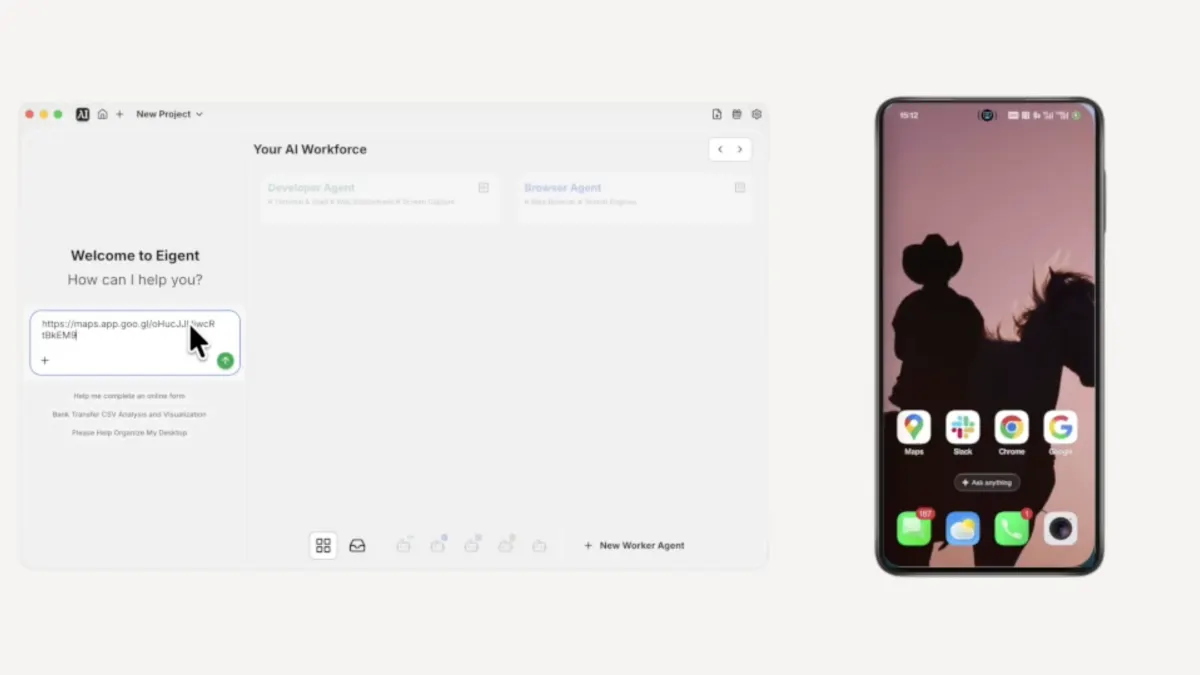
Mobile MCP brings iPhone and Android apps into the same multi-agent workflows you already run in Eigent. Instead of stopping at the desktop, your AI coworkers can open apps on a connected device, read the screen, tap through UIs, and pass results to tools like Slack—with task splitting and a Mobile Phone Agent handling the phone side. This page walks through a concrete mobile automation example: find a nearby restaurant on the device, then report to a Slack channel, all from one prompt.
Eigent can now control your phone.
With the Mobile MCP integration, Eigent's agents aren't limited to your desktop anymore. They can open apps on a connected iPhone or Android device, navigate the UI, extract information, and act on it — all as part of a single workflow you trigger with one prompt. No manual handoffs, no copy-pasting between screens.
This use case walks through exactly how that works, using a real example: asking Eigent to find a nearby restaurant and report back to a Slack channel — entirely through the phone.
Connect Your Phone to Eigent
Before you write a single prompt, you need to add Mobile MCP as a tool inside Eigent.
Open Eigent and click Connectors in the top navigation bar. You'll see MCP & Tools in the left sidebar — click it, then select the Your own MCPs tab and click + Add MCP Server. Paste in the following configuration:
{
  "mcpServers": {
    "mobile-mcp": {
      "command": "npx",
      "args": [
        "-y",
        "@mobilenext/mobile-mcp"
      ]
    }
  }
}
Click Install. Once it appears in your Added external servers list, Eigent has access to your connected device — iPhone or Android — and is ready to use it as part of any workflow.
Mobile MCP supports iOS real devices, iOS Simulator, Android real devices, and Android Emulator. The tutorial video uses an Android device, but the same setup works on iOS.
Write Your Prompt — Just Describe the Outcome
You don't need to tell Eigent which app to open or how to navigate it. Just describe what you want done. Here's the prompt used in this example:
Arrange a team dinner. All tasks must be completed using my mobile phone. For a group of five people, find a nearby restaurant rated 4.5 or higher, then send the restaurant name, address, and rating details to the #team-dinner Slack channel.
That's it. One prompt spanning two devices and two apps.
Eigent Splits the Task Automatically
Eigent doesn't execute your prompt as one big instruction. It first breaks it down through Task Splitting — identifying the distinct sub-tasks and which agents should handle them.
In this case it recognises two things need to happen: find a restaurant using the phone, then report the result via Slack on the desktop. It assigns the first to the Mobile Phone Agent and coordinates the handoff automatically. You don't configure any of this.
The Mobile Agent Navigates Your Phone
The Mobile Phone Agent takes control of your connected device using a vision-based approach — it sees the screen the same way you would, and interacts with it through taps and navigation rather than relying on APIs. This works on both iOS and Android.
Here's what it does on the phone:
- Opens Google Maps
- Confirms the current location
- Searches for nearby restaurants and filters for those rated 4.5 or higher
- Scrolls through the results and selects a qualifying option
- Taps into the listing to collect the name, address, rating, and other details
The agent is reading and interacting with the real Maps interface — live data, real filters, the same screen you'd use yourself.
Eigent Reports to Slack
Once the mobile agent has what it needs, Eigent switches context to the desktop without any input from you. It opens Slack, navigates to the correct channel, and posts a formatted message with everything it found — restaurant name, star rating, address, and a Maps link.
The whole cross-device handoff happens inside a single workflow run.
Review the Completion Report
When the task finishes, Eigent's dashboard displays a Completion Report summarising what happened:
- Location confirmed on the mobile device
- Restaurant found matching the criteria
- Details posted to the Slack channel
This gives you a clear record of every action the agents took, so you can verify the result or adjust the prompt and rerun it.
Why This Matters
Most agent workflows stop at the desktop. The moment a task requires something on your phone, you're back to doing it yourself.
Mobile MCP removes that boundary. Eigent can now operate any iOS or Android app — not just the ones with a developer API — as part of a larger cross-device workflow. Combined with Eigent's Multi-Agent coordination, this means a single prompt can reach across your desktop, your browser, your integrations, and now your phone.
The team dinner example is deliberately simple. The same capability applies anywhere you'd normally have to pick up your phone mid-workflow.
What to Try Next
Once Mobile MCP is connected, try prompts that span your phone and your desktop tools:
- Search for a venue on Google Maps and add it directly to Google Calendar.
- Check a mobile-only app for information and save the output to a Notion page.
- Use your phone to look something up and have the result summarised in Slack.
- Run any workflow where the final step is a notification sent to your phone.
- Combine phone-based research with a document generated by Eigent's Document Agent.
Tips for Better Results
Specify "use my mobile phone" in the prompt. When a task could be handled by either the browser agent or the mobile agent, telling Eigent which to use makes the routing unambiguous.
Test the connection with a simple task first. Before running a complex workflow, try something like "open Google Maps on my phone and confirm my current location." If the agent can do that, the integration is working.
Pair mobile steps with desktop integrations. Mobile MCP works best as one part of a larger workflow. Combine it with Slack, Notion, Google Calendar, or any other tool already connected to Eigent to build end-to-end automations that move information across all your devices automatically.