
Ernie
This guide walks you through setting up your Baidu ERNIE API key within Eigent to enable the Ernie model for your AI workforce.
Prerequisites
- Get your API Key: If you haven't already, generate a key in the Baidu AI Cloud Qianfan console.
- Copy the Key: Keep your API key ready to paste.
Configuration steps
1. Access application settings
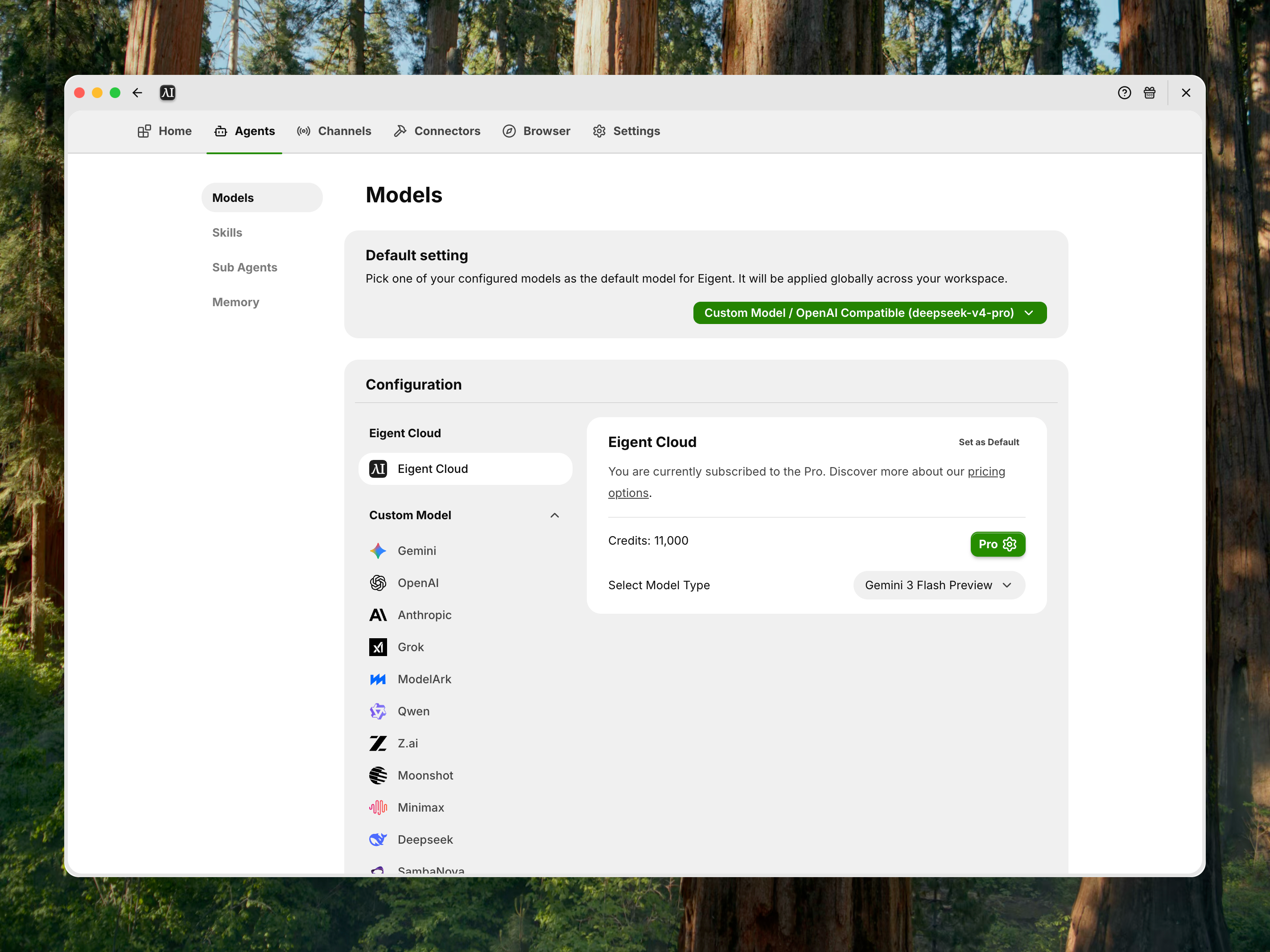
- Launch Eigent and navigate to the Home Page.
- Click on the Agent tab, then click on the Models button.
2. Locate model configuration
- Scroll down to the Custom Model area.
- Look for the Ernie card.
3. Enter API details
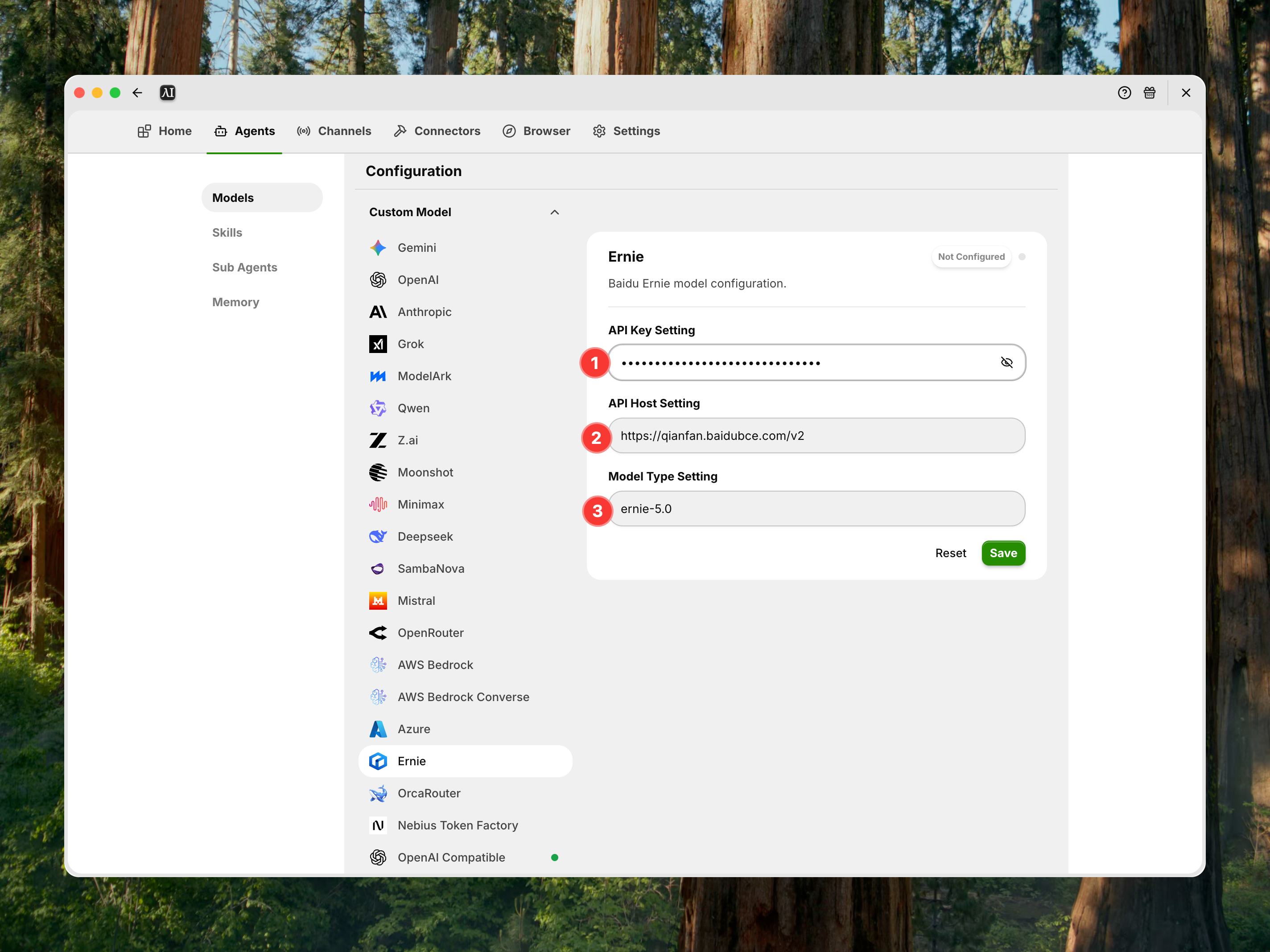
Click on the Ernie card and fill in the following fields:
- API Key: Paste the key you generated from Baidu AI Cloud Qianfan.
- API Host: Enter the API endpoint host.
- Example:
https://qianfan.baidubce.com/v2
- Example:
- Model Type: Enter the specific model version you wish to use.
- Example:
ernie-5.0
- Example:
- Save: Click the Save button to apply your changes.
4. Set as default & verify
- Once saved, the "Set as Default" button on the Ernie card will be selected/active.
- You are ready to go. Your Eigent agents can now utilize the Ernie model.